In this article:
Want enhanced SIM security, flexible data, and innovative tech? Consider switching to a prepaid eSIM for a hassle-free experience. It works just like a regular SIM card but in a digital format. Set-up is easier—you can buy it directly from your phone! The best part? Many devices are now eSIM-compatible!
eSIM vs. Physical SIM
Unlike traditional SIM cards, an eSIM (or embedded SIM) is built into your smartphone and only requires a QR code for activation. Apart from convenience, security is one of the critical benefits of eSIMs over physical SIM cards. The eSIM’s encryption enhances security to ensure your connections are protected from cloning. If your eSIM device is lost or stolen, you can remotely deactivate it through the mobile carrier.
The table below explains the advantages of an eSIM over a traditional SIM card.
| Features | Physical SIM Card | eSIM |
Installation | Requires inserting the card in the device’s dedicated slot | Activation via QR code |
| Number of Profiles | Limited to one | Stores multiple profiles |
| Switching Carriers | Needs a new SIM card from the carrier | Switches carriers digitally |
| International Travel | Requires purchasing a local SIM card | Convenient for switching to a local carrier while keeping your home number active |
| Security | Susceptible to loss or theft | Considered more secure, can’t be physically removed, and supports remote deactivation |
| Environmental Impact | Contributes to plastic waste | Reduces plastic waste |
Is Your Phone eSIM-Compatible?
Wondering how to get an eSIM to work? Before switching to a prepaid eSIM, check for device compatibility. This depends on the model, manufacturer, and carrier. You can also check your phone's settings for eSIM support.
On iPhones:
- Open “Settings.”
- Tap “Cellular” (or Mobile Data).
- Look carefully for an option that says “Add eSIM” or “Add Cellular Plan.” If you see this clickable option, your iPhone supports eSIM. (Tip: iPhone XS, XR, and later models generally support eSIMs.)
On Samsung Galaxy Smartphones:
- Open “Settings.”
- Tap “Connections.”
- Tap “SIM card manager” or “SIM Manager.”
- Look for an option labelled “+ Add eSIM” or “Add mobile plan.” If it's present, your Galaxy phone is compatible.
On Other Android Phones:
- Open “Settings.”
- Tap “Network & internet” or a similar network setting.
- Tap “SIMs” or “Mobile Network.” Look for an “Add eSIM” or similar option. Sometimes it’s hidden under a "+" icon or a “Download a SIM instead?” link.
- Alternative IMEI Check:
- Go to “Settings.”
- Search for “IMEI” using the search bar OR go to “About phone” > “Status” or “Status information.”
- Look for “IMEI information.” Check if there's an entry specifically labelled “IMEI (eSIM).” If yes, your device has eSIM capability.
If your phone supports multiple eSIMs, ensure its carrier is unlocked and has an available slot.
How to Activate Globe’s Local Prepaid eSIM
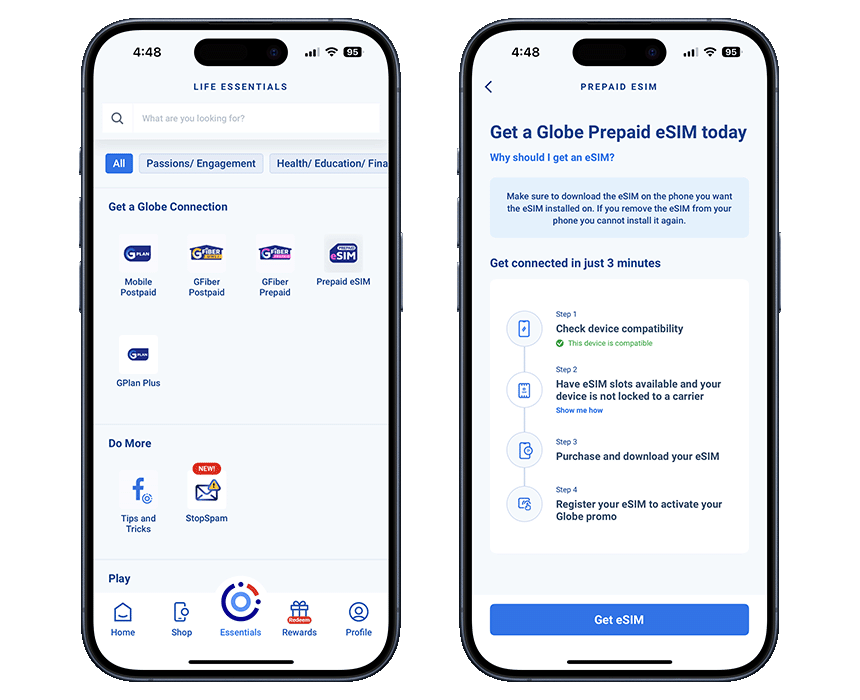
Globe was the first to make the eSIM available in the Philippines in 2018 for its postpaid customers. Following the launch of Traveler eSIM in 2023, everyone can enjoy the digital SIM with Globe’s Prepaid eSIM. Here’s how to activate your eSIM from Globe.
1. Download the GlobeOne App.
Ensure you have the latest version from your phone's app store.
2. Find the Prepaid eSIM offer.
- If you don’t have an existing GlobeOne account: Click the eSIM offer below the login button after downloading the app.
- If you already have an existing GlobeOne account: Open the app and tap “Essentials.” Then, scroll down to find the "Prepaid eSIM" icon and tap.
3. Check compatibility and purchase.
- Follow the prompts. The app includes an automatic phone compatibility check. A line will appear confirming if your device supports eSIM.
- Review the details. The price is currently ₱99 with initial inclusions.
- Tap "Get eSIM" and complete the payment process.
4. Install and Register your eSIM
Via GlobeOne App:
- Upon successful purchase, tap "Download eSIM to this phone."
- Wait for the eSIM to be downloaded.
- Add your eSIM account to GlobeOne by tapping "Add My Account to GlobeOne."
- Register your SIM.
Via QR Code:
- Upon successful purchase, you may save the QR code to your device or get it from your email.
- Follow the email instructions. Use the provided QR code to install the eSIM profile. Go to Settings > Cellular > Add eSIM or Settings > Connections > SIM Manager > Add eSIM.
- Scan the QR code or follow the on-screen prompts to download the profile.
- Once downloaded, register your SIM via the GlobeOne app or through the link provided in the email.
5. Activate mobile data.
Once installed and enabled in your settings, turn on your mobile data through your phone's settings for the new Globe Prepaid eSIM line to activate it fully on the network.
Globe’s Local Prepaid eSIM only costs ₱99 and includes 5 GB of data for all sites and unlimited all-net texts for three days. You can manage your data and check your balance using the GlobeOne app.
Managing Your Globe Prepaid eSIM

Once activated, managing your account is simple.
- Check Balance and Promos using the GlobeOne app. Log in to see your load balance, active promo details, and data usage in real time.
- Easily top up your prepaid eSIM number through:
- The GlobeOne app (using GCash, credit/debit cards, and others)
- The GCash app's "Load" feature
- Other online banking apps or e-wallets that offer load purchasing
- Traditional AutoloadMax retailers—just provide your 10-digit Globe number
- Promo Registration: Subscribe to Globe's Go+ promos, GoSURF, or other offers directly via GlobeOne. Ensure your eSIM is set as the line for sending SMS.
- Phone Settings: Use your phone’s native Cellular/SIM Manager settings to turn your eSIM line on/off, set it as the default for calls/SMS/data, or change its label. For example, "Globe Personal.”
Frequently Asked Questions About Prepaid eSIMs

Q: Can I switch to a prepaid eSIM and still use the same number if I’m an existing Globe Prepaid subscriber?
A: Switching is easy! Keep your current Globe Prepaid number by upgrading to an eSIM through the GlobeOne app. Just request the conversion via the SIM Services button in the GlobeOne app for only ₱99.
Ensure both your phone and carrier support this functionality
Q: How do I switch from a physical SIM to an eSIM?
A: First, ensure both your phone and carrier support this functionality.
- Your Phone: Look in your phone's settings or consult the manufacturer's website to see if it supports eSIM.
- Your Carrier: Make sure your carrier can activate eSIMs on your current plan.
Once you've verified compatibility, contact your carrier. They’ll provide you with specific instructions. This might involve the following methods.
- QR Code: Scan a code provided by your carrier through their app, website, or email.
- Store Visit: Get in-person help with the process.
Your phone will guide you through further steps like downloading the eSIM profile and activating it. Remember, not all carriers support transferring your existing number to an eSIM, so check their policy beforehand. Your physical SIM usually deactivates upon successful eSIM activation.
Q: Where do I buy a prepaid eSIM in the Philippines?
A: The most convenient way to purchase it is directly through the GlobeOne app (available on the App Store and Google Play). Just make sure your phone is eSIM-compatible before starting the process.
Q: Isn't a prepaid eSIM for international travel?
A: Not at all! While eSIMs are great for travel, they are just as useful for local use. Here’s how you can use a Globe Prepaid eSIM:
- For Locals (Going Abroad): Stay connected without switching SIM cards. You can easily subscribe to affordable Globe roaming promos through your eSIM, keeping your Philippine number active while you travel.
- For Travelers (Visiting the Philippines): Skip the airport lines! You can purchase a Globe Traveler eSIM via the GlobeOne app before you even land. It’s the fastest way to get local data the moment you arrive.
Q: Do Globe prepaid eSIM plans expire?
A: The initial ₱99 welcome pack comes with a set validity period. After that, your eSIM follows Globe’s standard prepaid expiry terms. Ensure you have regular load activity or promo registrations to keep your account and number active.
Q: Can I transfer an eSIM to another phone or do I have to buy a new one?
A: Understanding how to transfer an eSIM to another phone is important since it differs from physical SIM cards.
- iPhone Users: Apple often allows direct transfer between iPhones during setup or via Settings if Globe supports their eSIM Quick Transfer feature.
- Android Users: Before moving to a new phone, make sure you’ve retrieved your original eSIM QR code. If the original QR code doesn't work or you can't find it, you can request a new one through the GlobeOne app or visit a Globe store for assistance. Once you’re ready, you can rescan that QR code on your new device. You’ll typically need to delete the eSIM profile from your old phone’s settings.
Important: Don’t delete the old profile until you’re ready and have retrieved your original eSIM QR or received an updated one from Globe. Ensure your new device is eSIM-compatible and unlocked.
The benefits of a prepaid eSIM extend beyond convenience—it’s more secure, eco-friendly, and cost-effective than a traditional SIM card. Most importantly, it gives you greater control and flexibility in managing your mobile plan.